HMI (Screen, Button, and Sound)
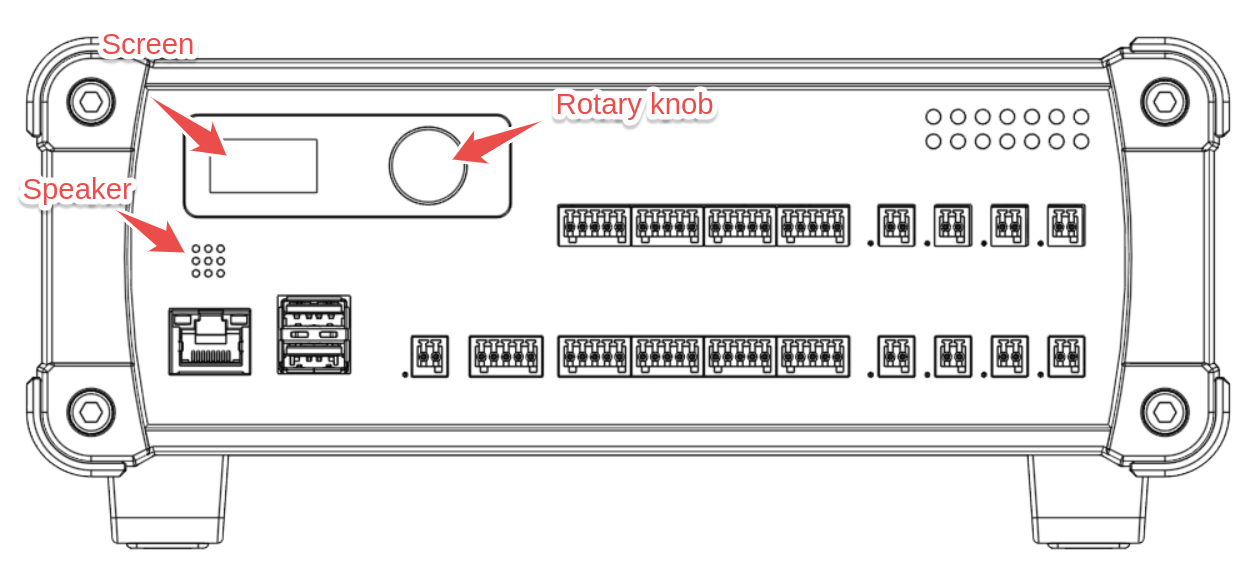
The AT1000 provides a simple yet functional Human-Machine Interface (HMI) that allows engineers to provide user feedback and interaction during test sequences. The HMI consists of:
- A color LCD screen (80 × 160 resolution)
- An audio speaker for notifications
- A rotary knob for user interaction
The image below shows the different elements on the front panel of the AT1000 device:
HMI Capabilities
Before diving into programming details, here’s what the HMI is designed for:
- Displaying status messages and progress information to the user.
- Allowing simple user interactions during test sequences.
The AT1000's HMI and API are not designed for building complex navigation menus, displaying images, or playing user-defined sound effects. While the hardware is capable of advanced graphics and audio, the HMI is intentionally simplified for ease of use in test automation.
The code examples in the following section assume that tester variable represents an open AT1000 device. The code to open an AT1000 device and create tester variable is not included for simplicity.
Screen Control
The AT1000 screen can display text messages, update the foreground and background colors, and show a progress bar.
- NodeJS
- Python
// Set the screen color (foreground: white, background: blue)
tester.screen().color("#FFFFFF", "#0000FF");

//Clear all content on the screen
tester.screen().cls();

// Display some text, and replace any previous text.
tester.screen().print("Test is \nin progress...");

// Update the progress bar to 75%.
// Setting progress to 0 hides the progress bar
tester.screen().progress(75);
# Assuming `tester` is an instance of a class controlling the screen
tester.screen().color("#FFFFFF", "#0000FF")  # Set foreground (white) and background (blue)

tester.screen().cls()  # Clear the screen

tester.screen().print("Test is \nin progress...")  # Display text

tester.screen().progress(75)  # Update the progress bar to 75%
Speaker Control
The built-in speaker emits predefined sound effects for success, notifications, and failures. These sounds help alert users about test status.
- NodeJS
- Python
// Play success sound at full volume
tester.audio().success();

// Play a notification sound at 50% volume
tester.audio().notification(50);

// Play a failure sound at 80% volume
tester.audio().failure(80);
# Play success sound at full volume
tester.audio().success()

# Play a notification sound at 50% volume
tester.audio().notification(50)

# Play a failure sound at 80% volume
tester.audio().failure(80)
Knob Interaction
The rotary knob allows for two types of user interactions:
- Push interaction (pressing the knob)
- Rotation interaction (turning left or right, returning pulse counts)
- NodeJS
- Python
let event = tester.knob.wait_event(20);

console.log("Button press: " + event.pushed);
console.log("Knob rotation: " + event.rotation);
# Wait for an event from the knob, with a timeout of 20 seconds
event = tester.knob.wait_event(20)

# Print the button press state and knob rotation value
print(f"Button press: {event.pushed}")
print(f"Knob rotation: {event.rotation}")
Summary
The AT1000’s HMI API enables simple and effective user interaction by controlling:
- The screen (color, messages, progress bar)
- The speaker (predefined sound effects)
- The rotary knob (button push & rotation detection)
These features help engineers create intuitive test sequences without unnecessary complexity.
API Reference
Accessing HMI
- NodeJS
- Python
const hmi = tester.hmi;
hmi = tester.hmi
HMI Module Methods
reset()
Resets the HMI to its default state.
- NodeJS
- Python
await tester.hmi.reset();
await tester.hmi.reset()
Returns: Promise<void> / Awaitable[None]
screen()
Access the screen interface for display operations.
- NodeJS
- Python
const screen = tester.hmi.screen();
screen = tester.hmi.screen()
Returns: Screen instance
audio()
Access the audio interface for sound playback.
- NodeJS
- Python
const audio = tester.hmi.audio();
audio = tester.hmi.audio()
Returns: Audio instance
knob()
Access the rotary knob interface for user input.
- NodeJS
- Python
const knob = tester.hmi.knob();
knob = tester.hmi.knob()
Returns: Knob instance
Screen Class
print(text)
Displays text on the screen.
- NodeJS
- Python
await screen.print("Test in progress...");
await screen.print("Test in progress...")
Parameters:
text(string/str): Text to display (max 1024 characters)
Returns: Promise<string> / Awaitable[str] - The displayed text
Exceptions:
- Throws validation error if text exceeds 1024 characters
colors(config) / color(fg, bg)
Sets the screen color scheme.
- NodeJS
- Python
await screen.colors({
  text: "#FFFFFF",
  progress: "#00FF00",
  background: "#000000"
});

// Or simplified version:
await screen.color("#FFFFFF", "#0000FF");
await screen.colors({
    "text": "#FFFFFF",
    "progress": "#00FF00",
    "background": "#000000"
})

# Or simplified version:
await screen.color("#FFFFFF", "#0000FF")
Parameters:
config(Color): Color configuration object:text(string/str, optional): Text color in hex format (#RRGGBB)progress(string/str, optional): Progress bar color in hex format (#RRGGBB)background(string/str, optional): Background color in hex format (#RRGGBB)
Returns: Promise<Color> / Awaitable[Color] - The applied color configuration
Exceptions:
- Throws validation error if color strings are not valid hex colors (#RRGGBB format)
progress(value)
Sets the progress bar value.
- NodeJS
- Python
await screen.progress(50);  // 50%
await screen.progress(0);   // Hide progress bar
await screen.progress(50)  # 50%
await screen.progress(0)   # Hide progress bar
Parameters:
value(number/int): Progress percentage (0 to 100). Setting to 0 hides the progress bar.
Returns: Promise<Progress> / Awaitable[Progress] - Object containing the progress value
Exceptions:
- Throws validation error if value is outside the range [0, 100]
clear() / cls()
Clears the screen display.
- NodeJS
- Python
await screen.cls();
// or
await screen.clear();
await screen.cls()
# or
await screen.clear()
Returns: Promise<void> / Awaitable[None]
Audio Class
play(config)
Plays a sound with specified volume.
- NodeJS
- Python
await audio.play({
  sound_id: "success",
  volume: 80
});
await audio.play({
    "sound_id": "success",
    "volume": 80
})
Parameters:
config(PlaybackConfiguration):sound_id(string/str, required): Sound identifier - one of:"success"- Success/pass sound"warning"- Warning sound"failure"- Failure/error sound"notification_1"- Notification sound 1"notification_2"- Notification sound 2"imperial_march"- Imperial March theme !
volume(number/int, required): Volume level (0 to 100)
Returns: Promise<PlaybackConfiguration> / Awaitable[PlaybackConfiguration] - The playback configuration
Exceptions:
- Throws validation error if
sound_idis not one of the valid values - Throws validation error if volume is outside the range [0, 100]
success([volume])
Plays the success sound.
- NodeJS
- Python
await audio.success();      // Full volume
await audio.success(50);    // 50% volume
await audio.success()      # Full volume
await audio.success(50)    # 50% volume
Parameters:
volume(number/int, optional): Volume level (0 to 100). Defaults to 100.
Returns: Promise<void> / Awaitable[None]
notification([volume])
Plays a notification sound.
- NodeJS
- Python
await audio.notification();     // Full volume
await audio.notification(50);   // 50% volume
await audio.notification()     # Full volume
await audio.notification(50)   # 50% volume
Parameters:
volume(number/int, optional): Volume level (0 to 100). Defaults to 100.
Returns: Promise<void> / Awaitable[None]
failure([volume])
Plays the failure sound.
- NodeJS
- Python
await audio.failure();      // Full volume
await audio.failure(80);    // 80% volume
await audio.failure()      # Full volume
await audio.failure(80)    # 80% volume
Parameters:
volume(number/int, optional): Volume level (0 to 100). Defaults to 100.
Returns: Promise<void> / Awaitable[None]
Knob Class
wait_event(timeout_ms)
Waits for a knob event (rotation or button press) with a timeout.
- NodeJS
- Python
const event = await knob.wait_event(5000);  // Wait up to 5 seconds

if (event) {
  console.log("Button pressed:", event.pushed);
  console.log("Rotation delta:", event.rotation);
} else {
  console.log("Timeout - no event");
}
event = await knob.wait_event(5000)  # Wait up to 5 seconds

if event:
    print(f"Button pressed: {event.pushed}")
    print(f"Rotation delta: {event.rotation}")
else:
    print("Timeout - no event")
Parameters:
timeout_ms(number/int): Timeout in milliseconds
Returns: Promise<KnobEvent | null> / Awaitable[KnobEvent | None] - Event object or null/None if timeout
KnobEvent properties:
pushed(boolean/bool): True if button was pressed during this eventrotation(number/int): Rotation change (positive = clockwise, negative = counter-clockwise)
is_button_pressed()
Checks if the knob button is currently pressed.
- NodeJS
- Python
const pressed = await knob.is_button_pressed();
console.log("Button is", pressed ? "pressed" : "not pressed");
pressed = await knob.is_button_pressed()
print("Button is", "pressed" if pressed else "not pressed")
Returns: Promise<boolean> / Awaitable[bool] - True if button is pressed, false otherwise
Types
Color
{
  text?: string,        // Hex color: #RRGGBB
  progress?: string,    // Hex color: #RRGGBB
  background?: string   // Hex color: #RRGGBB
}
Progress
{
  progress: number  // 0 to 100
}
PlaybackConfiguration
{
  sound_id: "success" | "warning" | "failure" |
            "notification_1" | "notification_2" | "imperial_march",
  volume: number  // 0 to 100
}
KnobEvent
{
  pushed: boolean,
  rotation: number
}
Notes
- Screen resolution is 80 × 160 pixels
- Screen supports multi-line text with
\nline breaks - Maximum screen text length is 1024 characters
- Colors must be in hex format with leading
#(e.g.,#FF0000) - Volume ranges from 0 (mute) to 100 (maximum)
- Knob
rotationis cumulative since last read (positive = clockwise) - The
wait_event()method blocks until an event occurs or timeout - Use
cls()orclear()before updating screen to prevent text overlap - Progress bar value is independent of displayed text